
Sensi FF Automatic Headshot Settings Generator
Generate recommended Free Fire sensitivity settings using your device profile, hardware, refresh rate, device age, and playstyle.
Auto Detect Your Device
Detect your available device information automatically. You can edit everything afterward.
We only read information that your browser already exposes. Nothing is stored.
Configure Your Device
Complete the required fields to calculate your recommended starting settings.
Recommended Settings
Recent Settings
Improve Your Free Fire Aim With Personalized Settings
Landing consistent headshots in Free Fire is not just about quick reflexes. Your sensitivity settings play a huge role in how smoothly you aim, drag, and react during every fight. Even skilled players struggle when their controls are not properly adjusted for their phone.
That’s where Sensi FF helps.
Instead of spending hours testing different sensitivity values, this Free Fire sensitivity calculator analyzes your device and playing style to recommend settings that feel natural. Whether you enjoy rushing enemies, landing one tap headshots, or playing with a sniper, the tool helps you find a balanced setup within seconds.
Unlike random sensitivity values shared on social media, Sensi FF generates personalized recommendations based on your mobile device, screen size, DPI preferences, and gameplay habits. The result is smoother aim, faster response time, and better control during close and long range fights.
If you want to improve your accuracy, increase your headshot rate, and enjoy a more responsive gaming experience, this Free Fire sensitivity generator gives you an excellent starting point.
What Is Sensi FF?
Sensi FF is an online Free Fire sensitivity calculator designed to recommend the best sensitivity settings for different Android devices and playing styles. The tool helps players adjust their controls without relying on random settings copied from professional players or content creators.
Every mobile phone responds differently. Screen size, refresh rate, touch sampling rate, processor performance, and display resolution all influence aiming performance. Because of this, one player’s perfect sensitivity may feel completely uncomfortable on another device.
The calculator solves that problem by generating personalized recommendations instead of generic values.
Depending on your preferences, it can help you optimize:
- General sensitivity
- Red Dot sensitivity
- 2x Scope
- 4x Scope
- Sniper Scope
- Free Look sensitivity
- DPI recommendations
- Fire button size
- Touch response balance
The goal is simple. Give every player settings that feel comfortable and improve aiming consistency without endless trial and error.
Why Free Fire Sensitivity Matters
Many players believe headshots depend only on skill. While practice is important, your sensitivity settings determine how accurately your crosshair follows your finger movement.
If the sensitivity is too low, your crosshair moves slowly and makes it difficult to react during fast fights.
If it is too high, aiming becomes unstable and difficult to control.
Finding the right balance improves almost every part of your gameplay.
Better One Tap Headshots
One tap players rely on smooth drag movement. Proper sensitivity makes upward swipes more predictable, allowing your crosshair to reach the opponent’s head more naturally.
Faster Target Tracking
When enemies jump, slide, or rush aggressively, balanced sensitivity allows you to follow their movement without overcorrecting your aim.
More Consistent Drag Shots
Drag shots require accurate finger movement. A properly calibrated fire button size combined with optimized sensitivity creates smoother drag mechanics and reduces accidental misses.
Improved Overall Control
Good sensitivity settings make movement feel lighter, improve camera control, and reduce unnecessary hand adjustments during intense matches.
How Sensi FF Works
The Sensi FF calculator uses several calibration factors instead of assigning the same values to everyone.
Device Optimization
Different smartphones respond differently to touch input. The calculator considers your device specifications before recommending sensitivity values that suit your hardware.
This helps improve responsiveness while maintaining smooth control during matches.
Gameplay Style Analysis
Not every player approaches fights the same way.
If you prefer aggressive rushing, the calculator can recommend higher movement sensitivity.
If your focus is accurate headshots, it can prioritize settings that improve drag precision.
Players who enjoy sniper gameplay receive more stable scope recommendations for long distance aiming.
Scope Calibration
Each scope behaves differently during combat.
The calculator adjusts sensitivity separately for:
- General camera
- Red Dot
- 2x Scope
- 4x Scope
- Sniper Scope
- Free Look
This creates a more balanced aiming experience regardless of weapon type.
DPI Recommendation
Many Android players also change their device DPI to improve touch responsiveness.
Sensi FF recommends balanced DPI values that complement your sensitivity settings without making the controls feel unstable.
Why Thousands of Players Use Sensi FF
Free Fire has millions of active players around the world, making every ranked match increasingly competitive.
Many players spend weeks copying professional sensitivity settings but still struggle because those values were created for different devices.
Sensi FF removes the guesswork by generating recommendations based on your own setup instead of someone else’s.
For both beginners and experienced players, personalized settings usually provide a much better starting point than randomly copying sensitivity values shared online.
Players commonly use the calculator to:
- Improve one tap headshots
- Increase drag shot accuracy
- Find the best Free Fire sensitivity settings for headshots
- Test balanced max sensitivity configurations
- Improve touch responsiveness
- Fine tune DPI settings
- Create smoother camera movement
- Reduce recoil control problems
- Improve close range battles
- Make aiming feel more consistent across different weapons
Main Features of the Sensi FF Calculator
Personalized Sensitivity Generation
Every recommendation is based on your device information and preferred gameplay style instead of using fixed settings for everyone.
Smart DPI Suggestions
The calculator recommends balanced DPI values that improve responsiveness while keeping controls comfortable for longer gaming sessions.
Headshot Focused Optimization
Players looking for higher headshot accuracy receive recommendations designed to make drag movements smoother and more predictable.
Fire Button Optimization
Fire button size affects drag shots more than many players realize.
The calculator suggests sizes that reduce accidental touches while making upward drag movement easier to control.
Fast Results
The tool generates recommendations within seconds, allowing players to quickly test new settings without manually changing dozens of values.
Beginner Friendly
You don’t need advanced gaming knowledge to use the calculator.
Simply select your device, choose your preferred playstyle, and receive optimized recommendations that you can immediately apply inside Free Fire.
Why Random Sensitivity Settings Usually Fail
Searching for Free Fire sensitivity settings for headshots often leads to hundreds of videos claiming to provide perfect values.
The problem is that those settings were created using completely different devices.
A flagship phone with a 120Hz display behaves differently from a budget phone running at 60Hz.
Touch sampling rate, processor performance, display resolution, and screen size all affect aiming.
That is why copying another player’s settings rarely produces the same results.
A personalized Free Fire sensitivity calculator offers a much better starting point because it considers factors unique to your device instead of assuming every phone behaves the same way.
Best Sensi FF Settings for Every Scope
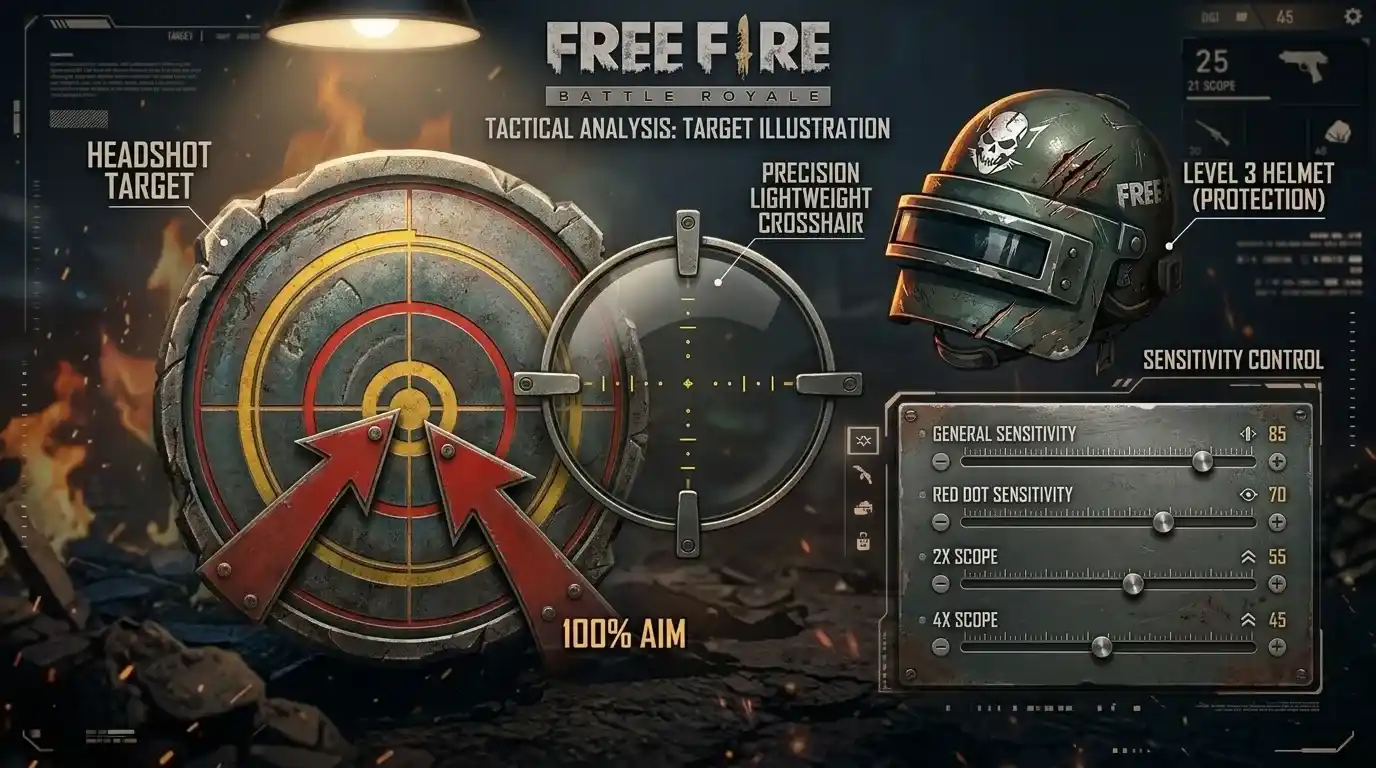
One of the biggest mistakes players make is using the same sensitivity for every scope. Each zoom level behaves differently, so your settings should match the way you fight.
A balanced setup gives you better control without making your aim feel too slow or too sensitive.
General Sensitivity
General sensitivity controls your camera movement when you’re not aiming through a scope.
Players who prefer aggressive gameplay usually benefit from a higher value because it allows faster turns and smoother movement during close range fights. If your camera feels difficult to control, slightly lowering this setting can improve accuracy without sacrificing speed.
Red Dot Sensitivity
The Red Dot scope is commonly used in medium range battles where quick adjustments are important.
A slightly higher setting makes it easier to drag toward an opponent’s head while still keeping the crosshair stable.
2x Scope
The 2x scope requires a balance between speed and precision.
Too much sensitivity can cause the crosshair to jump past your target, while a value that’s too low makes tracking moving enemies more difficult.
4x Scope
The 4x scope is designed for longer engagements where stability becomes more important than speed.
Lower sensitivity usually provides smoother tracking and better recoil control during sustained firing.
Sniper Scope
Sniper rifles demand precise adjustments.
Most experienced players prefer a lower sensitivity because even small finger movements can dramatically change your aim while fully zoomed.
Free Look
Free Look affects how quickly you can scan your surroundings without changing your character’s direction.
A higher value helps you gather information faster during rotations, especially in Battle Royale mode.
Max Sensitivity vs Balanced Sensitivity
Many players search for max sensitivity hoping it will instantly improve their headshot percentage.
The reality is more complicated.
Maximum sensitivity can make movement feel incredibly fast, but it also reduces control if your touch precision isn’t consistent.
When Max Sensitivity Works
Higher sensitivity can benefit players who:
- Prefer aggressive rushing.
- Frequently use SMGs and shotguns.
- Have fast finger movement.
- Play on devices with responsive touch screens.
- Practice drag shots regularly.
When Balanced Sensitivity Is Better
Balanced settings are usually the safer choice for most players because they offer:
- Better crosshair stability.
- More consistent recoil control.
- Improved medium range accuracy.
- Easier long range tracking.
- Smoother learning curve for beginners.
Instead of chasing the highest possible values, focus on finding settings that feel comfortable during real matches.
Brazilian Sensi FF Explained
One of the most searched terms is Brazilian Sensi FF because many professional Brazilian players are known for their exceptional drag shot accuracy.
However, there isn’t a single Brazilian sensitivity that works for everyone.
Most Brazilian players adjust their settings according to:
- Device performance.
- Display refresh rate.
- DPI configuration.
- HUD layout.
- Fire button size.
- Personal finger movement.
Instead of copying a famous player’s setup, use it as inspiration and fine tune the values according to your own phone.
That’s exactly what a personalized sensitivity generator helps you accomplish.
What Is Sensi FF Max?
Sensi FF Max generally refers to high sensitivity configurations designed for players who enjoy aggressive gameplay and faster camera movement.
These settings can make:
- Flick shots quicker.
- Drag movements smoother.
- Character turning speed faster.
- Camera response more responsive.
However, maximum sensitivity isn’t automatically the best choice.
Many top ranked players actually use balanced values because consistency wins more fights than extremely fast movement.
Choosing the Right DPI
DPI plays an important role in overall touch responsiveness, especially on Android devices.
Changing your DPI doesn’t improve your skills overnight, but it can make screen movement feel more natural when combined with proper sensitivity settings.
A good DPI should:
- Respond quickly without feeling unstable.
- Match your screen size.
- Work comfortably with your finger movement.
- Maintain smooth drag shots.
Avoid constantly changing DPI every few matches.
Once you find a comfortable combination, stick with it long enough to build muscle memory.
Fire Button Size Matters More Than You Think
Many players only adjust sensitivity while completely ignoring their fire button.
The size and placement of the fire button directly affect drag shots.
A button that’s too small may cause missed touches.
A button that’s too large can make upward drag movement inconsistent.
The best fire button placement should allow your thumb to move naturally without forcing uncomfortable hand positions.
Even small adjustments can noticeably improve your headshot consistency.
Common Mistakes That Reduce Headshots
Even with the best Sensi FF settings, certain habits can limit your performance.
Changing Settings Every Day
Constantly switching sensitivity prevents your muscles from adapting.
Choose one setup and practice with it for several days before making adjustments.
Copying Professional Players
Professional players often use flagship phones, gaming triggers, and custom HUD layouts.
Their settings may not perform the same on your device.
Ignoring Device Performance
Frame drops, overheating, and touch delay affect aiming just as much as sensitivity values.
Keeping your phone optimized is just as important as finding the right settings.
Expecting Instant Results
No sensitivity generator can replace practice.
Think of it as giving yourself the best possible starting point.
Your improvement still depends on training and experience.
Device Performance Tips for Better Gameplay
Good sensitivity works best when your phone performs smoothly.
You can improve your overall gaming experience by following a few simple habits.
- Close background applications before launching Free Fire.
- Keep enough free storage available.
- Avoid overheating during long gaming sessions.
- Use Game Mode if your device supports it.
- Keep your display clean for better touch response.
- Update your device software regularly.
- Maintain a stable internet connection for smoother gameplay.
These small improvements often make aiming feel more responsive without changing any sensitivity values.
Is There a Perfect Free Fire Sensitivity?
The simple answer is no.
Every player holds their phone differently, has different reaction speeds, and uses different devices.
That’s why there is no universal setting that guarantees automatic headshots.
The best Free Fire sensitivity calculator doesn’t promise magical values.
Instead, it recommends balanced settings that suit your hardware and playing style, giving you a much stronger foundation to improve through practice.
Can Sensi FF Improve Your Headshot Rate?
Many players download different settings every week hoping they’ll suddenly start landing perfect headshots. While good sensitivity helps, it isn’t the only factor that matters.
Think of sensitivity as the foundation of your gameplay. When your controls match your device and finger movement, aiming feels more natural. That makes it easier to build consistency through practice.
The biggest advantage is consistency. Instead of fighting against awkward controls, you can focus entirely on positioning, movement, and decision making.
Players usually notice improvements in:
- Crosshair control
- Drag shot accuracy
- Faster reaction time
- More comfortable camera movement
- Better recoil management
- Smoother target tracking
Does Practice Still Matter?
Absolutely.
Even the best Free Fire sensitivity settings cannot replace game sense or experience.
Players who improve the fastest usually combine optimized settings with regular practice.
A simple daily routine can make a noticeable difference.
Warm Up Before Ranked Matches
Spend 10 to 15 minutes in the training ground before jumping into ranked games.
Focus on:
- Flick aiming
- Drag shots
- Target tracking
- Weapon switching
- Gloo Wall placement
This helps your hands adjust to your sensitivity before competitive matches.
Stick With One Setup
Many players lose progress because they change settings every day.
Once your sensitivity feels comfortable, avoid making constant adjustments.
Small improvements over time are much more effective than chasing new values every week.
Is Sensi FF Safe to Use?
Yes.
A sensitivity generator only recommends settings that you manually apply inside the game’s options. It does not modify Free Fire, access your account, or change any game files.
Because the tool simply provides recommended values, using it does not violate the game’s settings system.
However, always be careful when downloading third party applications claiming to provide automatic headshots or unlock hidden sensitivity features.
Sensi FF APK and Macro Searches Explained
Many players search for:
- Sensi FF APK
- Sensi FF Headshot APK
- Sensi FF Macro APK
- Sensi FF Macro Game Booster APK Download
These searches are becoming more common, but it’s important to understand what they actually refer to.
A genuine Sensi FF tool works by calculating recommended sensitivity values. It should not require modifying the game or installing software that promises automatic headshots.
If an application claims it can:
- Automatically increase your headshot percentage.
- Remove recoil completely.
- Inject sensitivity into the game.
- Unlock premium gameplay advantages.
- Enable automatic aim assistance.
Treat those claims with caution.
Free Fire rewards skill, practice, and proper settings. No application can legally guarantee perfect gameplay.
Free Sensi FF vs Paid Sensi FF
Another common question is whether paid sensitivity tools provide better recommendations.
For most players, the answer is no.
A good calculator only needs basic information such as:
- Device model
- Screen size
- Playing style
- Preferred weapon category
- Current sensitivity
Charging money does not automatically make sensitivity recommendations more accurate.
The most important factor is whether the generated settings actually feel comfortable on your own device.
Troubleshooting Common Sensitivity Problems
My Aim Feels Too Fast
Lower your General sensitivity slightly before changing every other setting.
Small adjustments usually solve the problem.
Drag Shots Are Inconsistent
Check your fire button size first.
Many players blame sensitivity when the real issue is HUD placement.
Headshots Still Feel Difficult
Spend more time practicing crosshair placement.
Sensitivity helps guide your aim, but keeping your crosshair at upper body level before shooting has an even bigger impact.
Camera Feels Delayed
The issue may not be sensitivity.
Check for:
- Background apps
- Device overheating
- Low battery performance mode
- Poor frame rate
- Network lag
Myths About Free Fire Sensitivity
Myth: Maximum Sensitivity Gives Automatic Headshots
Higher sensitivity can improve movement speed, but it does not guarantee accurate aiming.
Control is always more important than speed.
Myth: Professional Player Settings Work for Everyone
Professional players use different phones, displays, HUD layouts, and playstyles.
Their settings are only useful as a reference.
Myth: Changing Sensitivity Every Match Helps
Frequent changes make it harder for your muscles to build consistency.
Keeping one comfortable setup usually produces better long term results.
Myth: Higher DPI Always Improves Gameplay
DPI should complement your sensitivity settings, not replace them.
Very high DPI can actually reduce control on some devices.
Frequently Asked Questions
What is the best Sensi FF setting?
There is no single setting that works for everyone. The best sensitivity depends on your device, screen size, and playing style. Personalized recommendations generally perform better than copied settings.
What is the best Free Fire sensitivity for headshots?
Balanced General sensitivity combined with properly adjusted Red Dot, 2x Scope, and fire button size usually produces the most consistent headshots.
Does Sensi FF work on every Android device?
Most Android devices can benefit from personalized sensitivity recommendations, although the ideal values vary depending on hardware performance.
Can I use these settings on Free Fire MAX?
Yes. The sensitivity system is very similar, so the recommended values can usually be applied with only minor adjustments if needed.
Should beginners use max sensitivity?
Not always.
Most beginners learn faster using balanced settings that provide better control while building muscle memory.
How often should I change my sensitivity?
Only make changes when your gameplay consistently feels uncomfortable. Constant adjustments usually slow your progress.
Final Thoughts
Landing more headshots isn’t about finding a secret setting hidden somewhere on the internet. It’s about using controls that match the way you play.
Sensi FF makes that process much easier by generating personalized recommendations instead of forcing every player to use the same values.
Once your sensitivity is optimized, don’t miss the latest Free Fire Redeem Codes to claim available in-game rewards before jumping into your next match.
Whether you’re searching for the best Free Fire sensitivity calculator, trying to improve drag shots, looking for smoother movement, or simply wanting more consistent aim, the right settings can make your practice sessions much more productive.
Use the generated values as your starting point, spend time in the training ground, and make small adjustments only when necessary. As your experience grows, your settings will naturally evolve with your gameplay.
The best sensitivity is the one that gives you confidence every time you enter the battlefield.